Social Media Widget
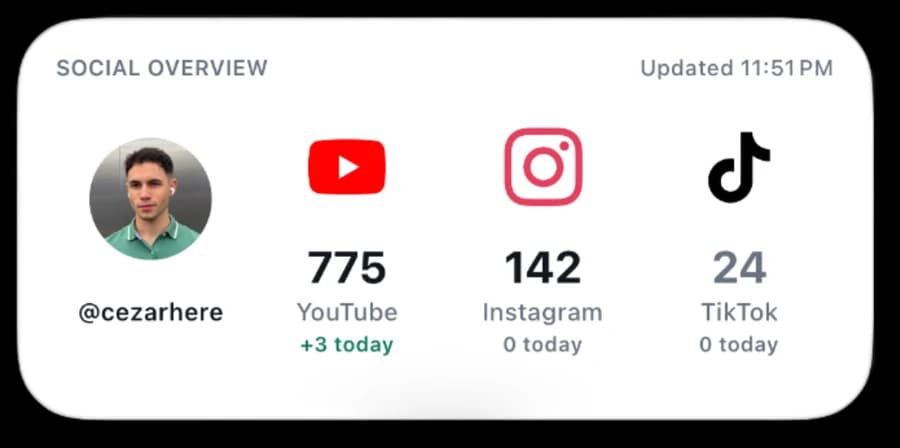
An iPhone widget showing your YouTube, Instagram and TikTok numbers, plus what changed today.
Build your own live social media dashboard for iPhone
A clean Home Screen widget with your profile photo, YouTube subscribers, Instagram followers, TikTok followers, and how much each one moved today.
Time: 20 to 30 minutes for YouTube and Instagram. TikTok is an optional advanced setup.
What you'll get
- A crisp, four-column iOS widget built with native Scriptable elements
- Live YouTube, Instagram and TikTok counts
- Your profile image and each platform's logo
- Local daily tracking that shows +X today, 0 today, or −X today
- Credentials stored in the iOS Keychain rather than exposed in the widget
Before you begin
- An iPhone or iPad
- Scriptable from the App Store
- A public YouTube channel
- An Instagram Business or Creator account
- A TikTok Developer account, if you want TikTok data
- Around 20 to 30 minutes for YouTube and Instagram
Download the widget
Open the file as text. You'll paste the complete contents into Scriptable.
Social-Dashboard-Widget.js
14.51 KiB, hosted on Notion for now
TikTok users will also need the optional token helper:
TikTok-Token-Setup.js
3.28 KiB, hosted on Notion for now
1. Install the Scriptable widget
- Open Scriptable on your iPhone.
- Tap + to create a new script.
- Name it Social Dashboard.
- Open the downloaded
Social-Dashboard-Widget.jsfile. - Copy everything in the file and paste it into the new Scriptable script.
- At the top of the script, replace
@YOUR_HANDLEwith the handle you want displayed, and@YOUR_YOUTUBE_HANDLEwith your exact YouTube handle. - Tap Done.
Don't run it yet. We'll create the credentials first.
2. Connect YouTube
YouTube is the easiest platform, because public channel statistics only need an API key.
- Open the Google Cloud Console.
- Create a new project or select an existing one.
- Go to APIs & Services → Library.
- Search for YouTube Data API v3 and enable it.
- Go to APIs & Services → Credentials.
- Select Create credentials → API key.
- Edit the key and restrict its API access to YouTube Data API v3.
- Copy the API key.
- Run Social Dashboard in Scriptable.
- Paste the key when Scriptable asks for the YouTube API key.
3. Connect Instagram
- Sign in at Meta for Developers.
- Select Create App.
- Choose the Instagram use case named roughly Manage messaging & content on Instagram.
- Open Use cases → Customize → Instagram API.
- Choose API setup with Instagram login.
- Add the
instagram_business_basicpermission. That's the one that covers follower count and profile information. - If your app is still in development: open App roles, add your Instagram username as an Instagram Tester, then accept the invitation from Instagram's Apps and Websites settings.
- Return to the Instagram API setup and choose Add account or Generate access token.
- Authorize your professional Instagram account.
- Copy the generated access token.
- Run Social Dashboard in Scriptable and paste it when asked for the Instagram access token.
The widget requests followers_count and profile_picture_url directly from Instagram, so there's no separate profile-picture API to set up.
4. Connect TikTok (optional, advanced)
TikTok doesn't offer a simple public follower-count API key. It uses OAuth, and follower statistics need the user.info.stats scope.
- Sign in at TikTok for Developers.
- Create an app. For testing your own account, start with a Sandbox.
- Add Login Kit.
- Add a Web platform.
- Supply an app icon, an app description, a website URL, a Terms of Service URL, a Privacy Policy URL, and an exact HTTPS redirect URI.
- Add the scopes
user.info.basicanduser.info.stats. - Add your TikTok account as a Sandbox target user.
- Apply and save the changes.
- Copy your Client Key. Keep the Client Secret private.
- Open the downloaded
TikTok-Token-Setup.jsfile and replacePASTE_YOUR_TIKTOK_CLIENT_KEYandPASTE_YOUR_EXACT_TIKTOK_REDIRECT_URI. - Paste that helper into a second Scriptable script named TikTok Token Setup.
- Complete TikTok's authorization flow using the exact same redirect URI.
- Copy the one-time authorization code returned to your redirect page.
- Run TikTok Token Setup.
- Paste the authorization code and Client Secret when prompted.
The helper exchanges the code and saves the resulting access and refresh tokens in your iOS Keychain.
5. Add it to your Home Screen
- Long-press an empty area of your Home Screen.
- Tap Edit → Add Widget.
- Search for Scriptable.
- Choose the medium rectangular widget and add it.
- Long-press the new widget and select Edit Widget.
- Under Script, choose Social Dashboard.
- Wait a few seconds for the first refresh.
How "today" is calculated
The first successful run stores each platform's count in a local JSON file in Scriptable's iCloud folder. On the next calendar day, the widget compares the latest count with that saved baseline.
- +8 today means the count went up by eight.
- 0 today means no change.
- −2 today means it went down by two.
- tomorrow means the widget is still setting its first baseline.
Because iOS controls widget refresh timing, "today" is an approximation based on the first successful refresh, not a guaranteed midnight snapshot.
Refresh behavior
The script asks for a refresh after 30 minutes, but iOS decides when widgets actually run. It may hold background updates for several hours, then refresh shortly after you look at that Home Screen page.
The time in the top-right corner shows when the script last completed a successful run. Tapping the widget opens Scriptable and refreshes immediately.
Troubleshooting
A platform shows a dash instead of a number. Confirm you pasted the right credential. Run the script inside Scriptable and look for an error. Check whether the token expired, and that the required API or scope is enabled.
The widget still shows old numbers. Wait a few seconds after returning to the Home Screen, or run the script manually inside Scriptable. Confirm Background App Refresh is on for Scriptable. iOS, not the script, controls the final refresh schedule.
Instagram says "Insufficient Developer Role". Add the account under App roles → Instagram Tester, accept the invitation from that Instagram account, then generate the token again.
TikTok returns no follower count. Confirm user.info.stats is added to the app, re-authorize after adding the scope, exchange the new authorization code for a new token, and check the redirect URI matches character for character.
Security and privacy
- API credentials are saved in the iOS Keychain.
- Daily counts are stored locally in
social-dashboard-history.json. - The widget never sends your credentials to me.
- Never publish a screenshot showing an access token, client secret or API key.
- If you accidentally expose a credential, revoke it and create a new one.
FAQ
Do I need a Facebook Page for Instagram? No, not with Instagram API with Instagram Login. You do need a Facebook account to get into Meta for Developers.
Do I need a separate API for the profile picture? No. The widget uses the picture returned by YouTube, Instagram or TikTok. You can also set a custom profileImageURL at the top of the script.
Can I use a personal Instagram account? No. Switch it to Creator or Business first.
Why does it say "tomorrow"? The first day sets the baseline. Daily changes start after the date changes and the widget runs again.
Will it really update every 30 minutes? It asks for that, but iOS can delay it. That's standard WidgetKit behavior.
Official docs
- Scriptable widgets
- YouTube Data API: channels.list
- Meta: Instagram Platform
- TikTok Login Kit
- TikTok scopes
If this helped you build yours, share a screenshot and tag @cezarhere.