Net Worth Widget
Your cash, investments and net worth on your iPhone home screen, updated from your finance dashboard.
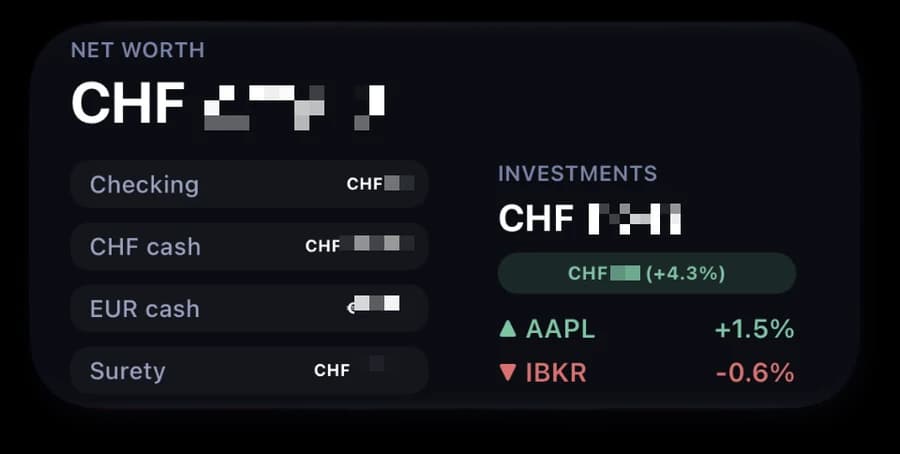
Put your net worth on your Home Screen
A dark, clean iPhone widget with your net worth, your account balances and how your investments are doing. Works with your own finance dashboard or any portfolio tracker that can serve a little JSON.
Time: 1 minute to try it with sample numbers. About 20 minutes to connect your own data.
What you'll get
- Your net worth, big, every time you unlock your phone
- Up to four balances in neat rows: checking, savings, cash, whatever you track
- Your investments with the total gain, plus the best and worst mover of the day
- Any currency
- A secret that lives in your iPhone's Keychain, never in the code
Who it's for
- You built the Finance Dashboard. There's a ready-made endpoint below. Drop it in and the widget shows your latest net worth snapshot.
- You track a portfolio somewhere else. Anything that can return a small JSON file works: your own app, a script, a spreadsheet published as JSON.
- You just want to see it. Leave the address empty and it runs with sample numbers, marked DEMO.
What you'll need before we start
- An iPhone and Scriptable, free on the App Store
- For real numbers: a dashboard or tracker you can add one small endpoint to
Time: 1 minute with sample numbers. About 20 minutes with your own data.
Set it up with Claude
The fastest route: copy this into Claude, then answer its questions.
I want to set up the Net Worth Widget for Scriptable on my iPhone, from
cezarhere.com/net-worth-widget. Guide me one step at a time, wait
for me to say "done" before the next step, and keep it short.

My data comes from: [the Finance Dashboard starter kit / my own app / a
spreadsheet / I don't know yet]. My currency: [USD / EUR / CHF / ...].

The widget reads JSON in this shape from one URL, with an optional
"Authorization: Bearer <secret>" header:
{ "currency", "net_worth", "balances": [{ "label", "value" }],
  "investments": { "value", "gain", "gain_pct", "best_mover", "worst_mover" } }

Help me get my data into that shape at a URL. Never ask me to paste my
secret or my real balances into this chat.
1. Try it with sample numbers
- Copy the widget below.
- In Scriptable, tap +, paste everything, name it Net Worth, and tap Done.
- Tap the script. You'll see the widget with sample numbers and a DEMO label.
- On your Home Screen, add a medium Scriptable widget, tap it while editing, and choose Net Worth.
// Net Worth Widget for Scriptable (iOS)
// Add it as a MEDIUM Home Screen widget.
//
// Leave API_URL empty to see it with sample numbers first. Then point it at
// any endpoint that returns the JSON described at the bottom of this file,
// for example the widget-summary endpoint for the Finance Dashboard.

const API_URL = ""; // e.g. "https://your-dashboard.vercel.app/api/widget-summary"

// The secret is asked for once and kept in the iOS Keychain, never in this file.
const SECRET_KEY = "net-worth-widget.secret";

// ── Colors ──
const COLORS = {
  bg: new Color("#0b0d12"),
  pillBg: new Color("#14161d"),
  label: new Color("#7b83a8"),
  labelDim: new Color("#9aa2c0"),
  white: Color.white(),
  green: new Color("#7ec4a4"),
  greenBg: new Color("#7ec4a4", 0.15),
  red: new Color("#d97070"),
  redBg: new Color("#d97070", 0.15),
  divider: new Color("#262a38"),
};

// Sample numbers for the first look. Shown with a DEMO label.
const DEMO = {
  currency: "USD",
  net_worth: 84250,
  balances: [
    { label: "Checking", value: 6420 },
    { label: "Savings", value: 18900 },
    { label: "Cash", value: 1200 },
    { label: "Crypto", value: 3150 },
  ],
  investments: {
    value: 54580,
    gain: 6910,
    gain_pct: 14.5,
    best_mover: { ticker: "VTI", change_pct: 1.2 },
    worst_mover: { ticker: "AAPL", change_pct: -0.8 },
  },
};

// ── Data ──
async function secret() {
  if (Keychain.contains(SECRET_KEY)) return Keychain.get(SECRET_KEY);
  if (config.runsInWidget) return "";
  const prompt = new Alert();
  prompt.title = "Widget secret";
  prompt.message = "Paste the secret your endpoint expects. It's saved in the iOS Keychain.";
  prompt.addSecureTextField("Secret", "");
  prompt.addAction("Save");
  prompt.addCancelAction("Skip");
  const choice = await prompt.presentAlert();
  const value = prompt.textFieldValue(0).trim();
  if (choice === 0 && value) Keychain.set(SECRET_KEY, value);
  return value;
}

async function fetchSummary() {
  if (!API_URL) return { ...DEMO, demo: true };
  const req = new Request(API_URL);
  const s = await secret();
  if (s) req.headers = { Authorization: `Bearer ${s}` };
  req.timeoutInterval = 15;
  return await req.loadJSON();
}

function money(n, currency) {
  if (n === null || n === undefined) return "—";
  try {
    return Number(n).toLocaleString(undefined, { style: "currency", currency, maximumFractionDigits: 0 });
  } catch (_) {
    return `${currency} ${Math.round(n).toLocaleString()}`;
  }
}

function pct(n) {
  if (n === null || n === undefined) return "—";
  return `${n >= 0 ? "+" : ""}${n.toFixed(1)}%`;
}

// ── Widget ──
async function createWidget() {
  const w = new ListWidget();
  w.backgroundColor = COLORS.bg;
  w.setPadding(24, 18, 18, 18);

  let data;
  try {
    data = await fetchSummary();
  } catch (err) {
    const t = w.addText("Couldn't load data");
    t.textColor = COLORS.red;
    t.font = Font.mediumSystemFont(13);
    return w;
  }
  const cur = data.currency || "USD";

  const head = w.addStack();
  head.layoutHorizontally();
  const label = head.addText("NET WORTH");
  label.font = Font.semiboldSystemFont(9);
  label.textColor = COLORS.label;
  if (data.demo) {
    head.addSpacer();
    const d = head.addText("DEMO");
    d.font = Font.semiboldSystemFont(9);
    d.textColor = COLORS.red;
  }

  w.addSpacer(2);
  const netWorth = w.addText(money(data.net_worth, cur));
  netWorth.font = Font.boldSystemFont(24);
  netWorth.textColor = COLORS.white;
  w.addSpacer(10);

  const cols = w.addStack();
  cols.layoutHorizontally();

  const balancesCol = cols.addStack();
  balancesCol.layoutVertically();
  balancesCol.size = new Size(150, 0);

  for (const row of (data.balances || []).slice(0, 4)) {
    const pill = balancesCol.addStack();
    pill.backgroundColor = COLORS.pillBg;
    pill.cornerRadius = 8;
    pill.setPadding(4, 8, 4, 8);
    pill.layoutHorizontally();
    pill.centerAlignContent();
    const l = pill.addText(row.label);
    l.font = Font.mediumSystemFont(10);
    l.textColor = COLORS.labelDim;
    pill.addSpacer();
    const v = pill.addText(money(row.value, row.currency || cur));
    v.font = Font.boldSystemFont(10);
    v.textColor = COLORS.white;
    v.lineLimit = 1;
    v.minimumScaleFactor = 0.7;
    balancesCol.addSpacer(6);
  }

  const inv = data.investments;
  if (inv) {
    cols.addSpacer(14);
    const divider = cols.addStack();
    divider.size = new Size(1, 0);
    divider.backgroundColor = COLORS.divider;
    cols.addSpacer(14);

    const investCol = cols.addStack();
    investCol.layoutVertically();
    investCol.size = new Size(125, 0);

    const investLabel = investCol.addText("INVESTMENTS");
    investLabel.font = Font.semiboldSystemFont(9);
    investLabel.textColor = COLORS.label;
    investCol.addSpacer(4);

    const investValue = investCol.addText(money(inv.value, cur));
    investValue.font = Font.boldSystemFont(22);
    investValue.textColor = COLORS.white;
    investValue.lineLimit = 1;
    investValue.minimumScaleFactor = 0.7;
    investCol.addSpacer(5);

    if (inv.gain_pct !== null && inv.gain_pct !== undefined) {
      const up = inv.gain_pct >= 0;
      const badge = investCol.addStack();
      badge.backgroundColor = up ? COLORS.greenBg : COLORS.redBg;
      badge.cornerRadius = 999;
      badge.setPadding(4, 8, 4, 8);
      badge.size = new Size(125, 0);
      const t = badge.addText(`${money(inv.gain, cur)} (${pct(inv.gain_pct)})`);
      t.font = Font.boldSystemFont(11);
      t.textColor = up ? COLORS.green : COLORS.red;
      t.lineLimit = 1;
      t.minimumScaleFactor = 0.7;
      t.centerAlignText();
      investCol.addSpacer(8);
    }

    for (const [m, up] of [[inv.best_mover, true], [inv.worst_mover, false]]) {
      if (!m) continue;
      const row = investCol.addStack();
      row.layoutHorizontally();
      const color = up ? COLORS.green : COLORS.red;
      const tick = row.addText(`${up ? "▲" : "▼"} ${m.ticker}`);
      tick.font = Font.semiboldSystemFont(11);
      tick.textColor = color;
      row.addSpacer();
      const p = row.addText(pct(m.change_pct));
      p.font = Font.semiboldSystemFont(11);
      p.textColor = color;
      investCol.addSpacer(5);
    }
  }

  return w;
}

const widget = await createWidget();
if (config.runsInWidget) {
  Script.setWidget(widget);
} else {
  await widget.presentMedium();
}
Script.complete();

/*
  The JSON your endpoint returns. Everything except net_worth is optional.

  {
    "currency": "USD",                 // any ISO code: USD, EUR, CHF, GBP...
    "net_worth": 84250,
    "balances": [                      // up to 4 rows, any labels
      { "label": "Checking", "value": 6420 },
      { "label": "EUR cash", "value": 900, "currency": "EUR" }
    ],
    "investments": {
      "value": 54580,
      "gain": 6910,
      "gain_pct": 14.5,
      "best_mover":  { "ticker": "VTI",  "change_pct": 1.2 },
      "worst_mover": { "ticker": "AAPL", "change_pct": -0.8 }
    }
  }
*/
2. Connect your Finance Dashboard
If you built the dashboard from the starter kit, add this file to your project as api/widget-summary.js:
// api/widget-summary.js
// Drop this into a Finance Dashboard built from the starter kit. It returns
// your latest net worth snapshot in the format the Net Worth Widget reads.
//
// Add two environment variables in Vercel (server only, no VITE_ prefix):
//   WIDGET_SECRET        any long random string; paste the same into the widget
//   SUPABASE_SECRET_KEY  Supabase -> Project Settings -> API Keys -> secret key
// (VITE_SUPABASE_URL is already set from the kit.)

import { createClient } from "@supabase/supabase-js";

const CURRENCY = "USD"; // match the currency in your dashboard's settings

export default async function handler(req, res) {
  const expected = process.env.WIDGET_SECRET;
  const given = (req.headers.authorization ?? "").replace(/^Bearer\s+/i, "");
  if (!expected || given !== expected) return res.status(401).json({ error: "unauthorized" });

  const supabase = createClient(
    process.env.SUPABASE_URL ?? process.env.VITE_SUPABASE_URL,
    process.env.SUPABASE_SECRET_KEY,
  );

  const { data, error } = await supabase
    .from("net_worth_snapshots")
    .select("cash, investments, other_assets, debts, net_worth, snapshot_date")
    .order("snapshot_date", { ascending: false })
    .limit(1)
    .maybeSingle();

  if (error) return res.status(500).json({ error: error.message });
  if (!data) return res.status(404).json({ error: "No net worth snapshot yet" });

  return res.status(200).json({
    currency: CURRENCY,
    net_worth: Number(data.net_worth),
    balances: [
      { label: "Cash", value: Number(data.cash) },
      { label: "Other assets", value: Number(data.other_assets) },
      { label: "Debts", value: -Number(data.debts) },
    ],
    investments: { value: Number(data.investments), gain: null, gain_pct: null },
  });
}
- In Vercel, add
WIDGET_SECRET(any long random string, for example fromopenssl rand -hex 32) andSUPABASE_SECRET_KEY(Supabase → Project Settings → API Keys → secret key). Neither gets aVITE_prefix. - Set
CURRENCYat the top of the file to your dashboard's currency, push, and wait for the redeploy. - In the widget, set
API_URLtohttps://your-dashboard.vercel.app/api/widget-summary. - Run the widget once in Scriptable. It asks for the secret: paste your
WIDGET_SECRET. It's saved in the Keychain.
The widget now shows your latest net worth snapshot. Add a new snapshot in the dashboard and the widget follows on its next refresh.
3. Or connect any other data
The widget reads one JSON object. Everything except net_worth is optional:
{
  "currency": "EUR",
  "net_worth": 84250,
  "balances": [
    { "label": "Checking", "value": 6420 },
    { "label": "Savings", "value": 18900 }
  ],
  "investments": {
    "value": 54580,
    "gain": 6910,
    "gain_pct": 14.5,
    "best_mover": { "ticker": "VTI", "change_pct": 1.2 },
    "worst_mover": { "ticker": "AAPL", "change_pct": -0.8 }
  }
}
Serve that from any URL you control, protect it with a secret if it holds real numbers, and set API_URL to it. The Claude prompt above can walk you through it for whatever you use.
Troubleshooting
It says "Couldn't load data". Open the API_URL in a browser. You should see {"error":"unauthorized"} without the secret, which means the endpoint is up. Anything else points at the endpoint, not the widget.
It still shows DEMO. API_URL is empty. Paste your address between the quotes at the top.
I pasted the wrong secret. Open the widget code, temporarily add Keychain.remove("net-worth-widget.secret") on a new line at the top, run it once, then delete that line and run it again.
The numbers are old. iOS decides when widgets refresh. Tap the widget to open Scriptable and refresh right away.
If you put it on your Home Screen, show me. Tag @cezarhere.